
Managing Users
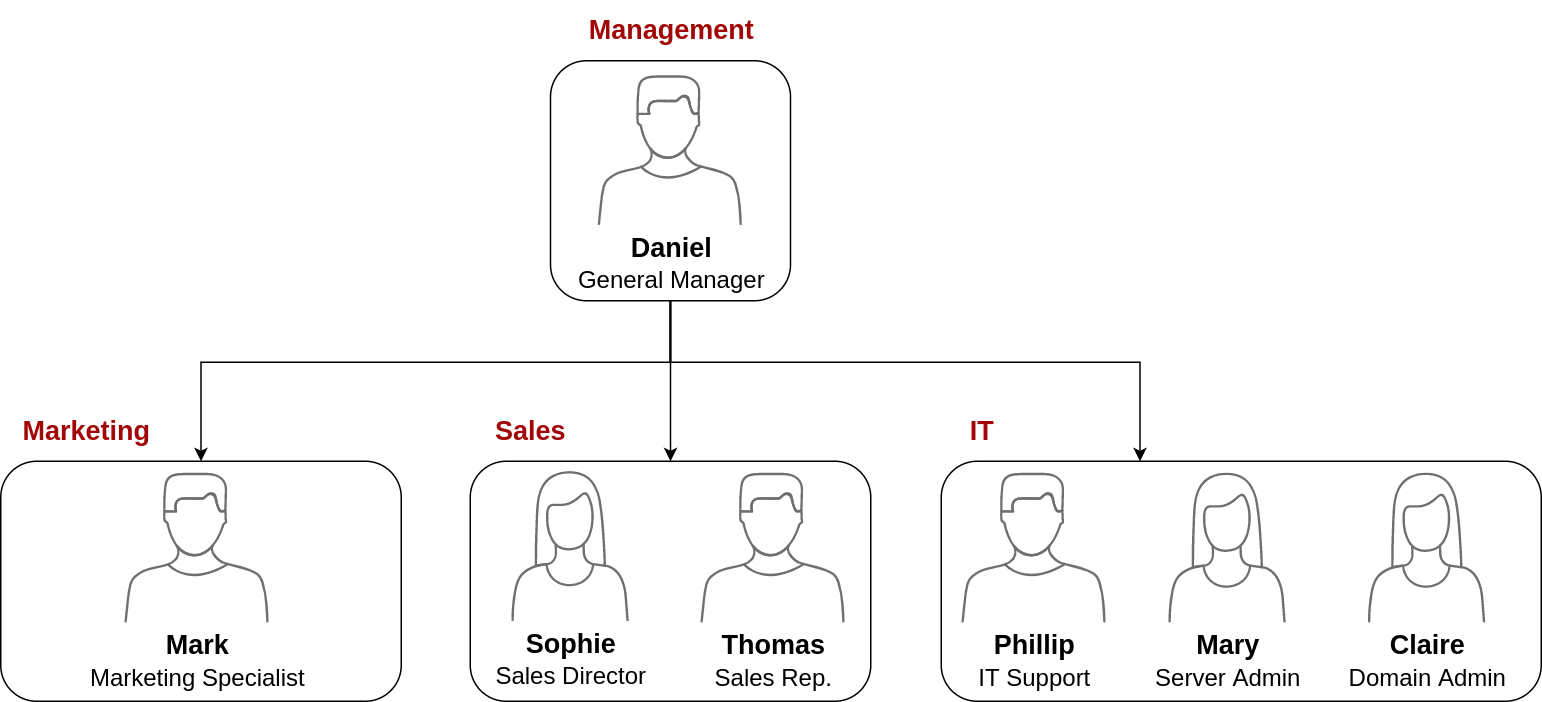
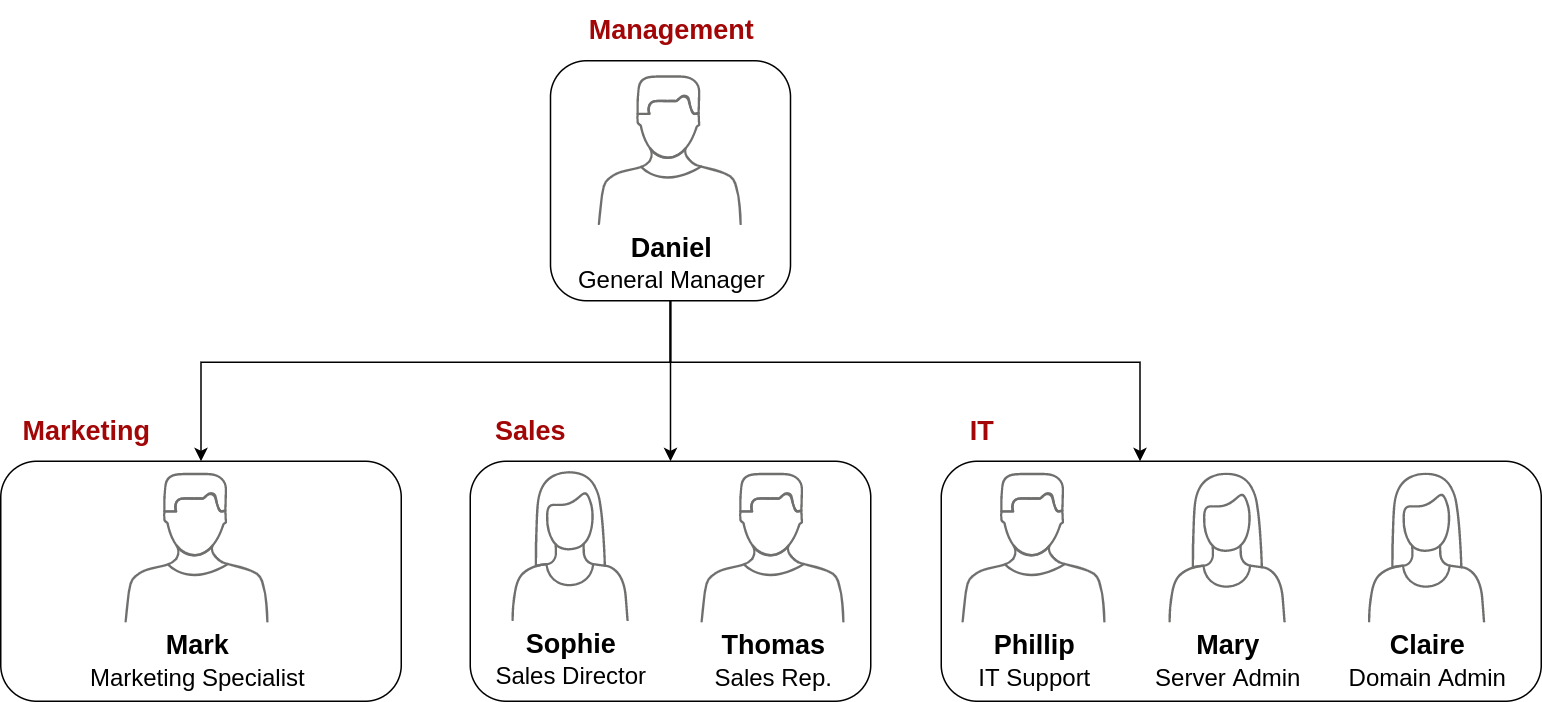
Your first task as the new domain administrator is to check the existing AD OUs and users, as some recent changes have happened to the business. You have been given the following organisational chart and are expected to make changes to the AD to match it:
Deleting extra OUs and users
The first thing you should notice is that there is an additional department OU in your current AD configuration that doesn't appear in the chart. We've been told it was closed due to budget cuts and should be removed from the domain. If you try to right-click and delete the OU, you will get the following error:
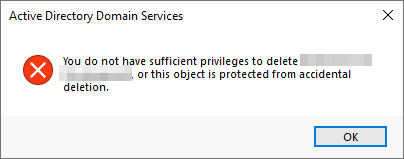
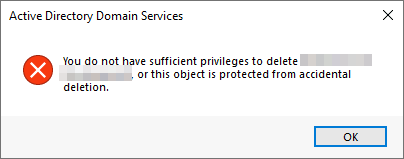
By default, OUs are protected against accidental deletion. To delete the OU, we need to enable the Advanced Features in the View menu:
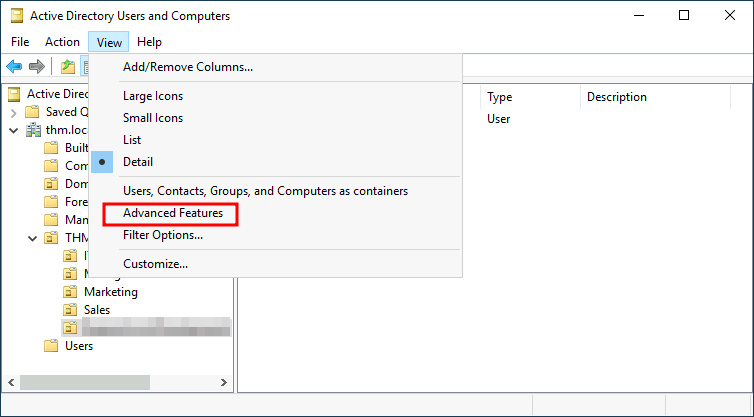
This will show you some additional containers and enable you to disable the accidental deletion protection. To do so, right-click the OU and go to Properties. You will find a checkbox in the Object tab to disable the protection:
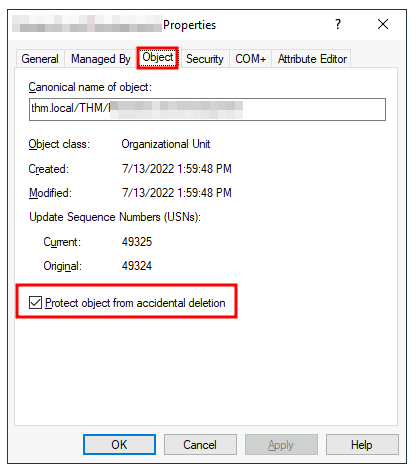
Be sure to uncheck the box and try deleting the OU again. You will be prompted to confirm that you want to delete the OU, and as a result, any users, groups or OUs under it will also be deleted.
After deleting the extra OU, you should notice that for some of the departments, the users in the AD don't match the ones in our organisational chart. Create and delete users as needed to match them.
Delegation
One of the nice things you can do in AD is to give specific users some control over some OUs. This process is known as delegation and allows you to grant users specific privileges to perform advanced tasks on OUs without needing a Domain Administrator to step in.
One of the most common use cases for this is granting IT support the privileges to reset other low-privilege users' passwords. According to our organisational chart, Phillip is in charge of IT support, so we'd probably want to delegate the control of resetting passwords over the Sales, Marketing and Management OUs to him.
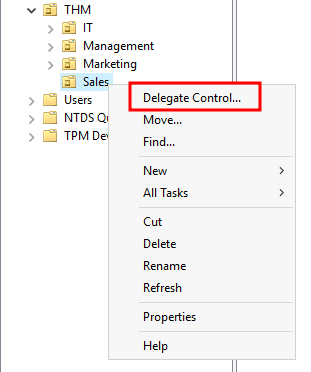
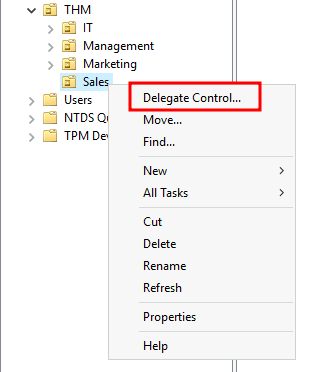
For this example, we will delegate control over the Sales OU to Phillip. To delegate control over an OU, you can right-click it and select Delegate Control:
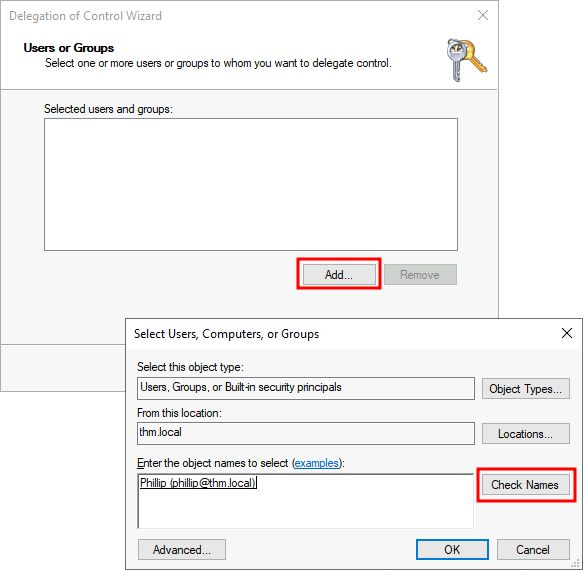
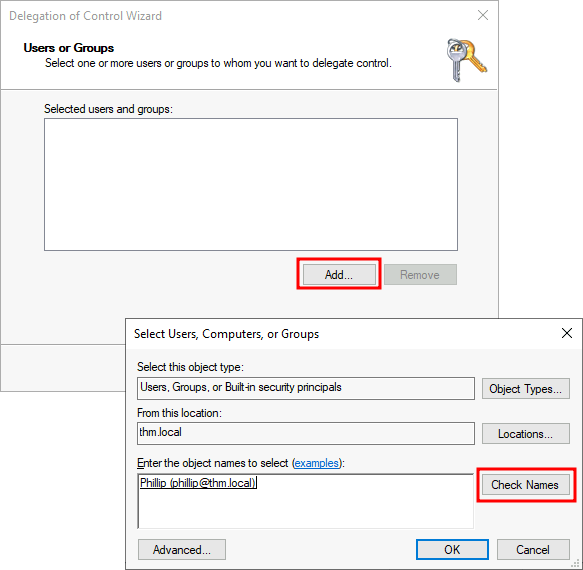
This should open a new window where you will first be asked for the users to whom you want to delegate control:
Note: To avoid mistyping the user's name, write "phillip" and click the Check Names button. Windows will autocomplete the user for you.
Click OK, and on the next step, select the following option:
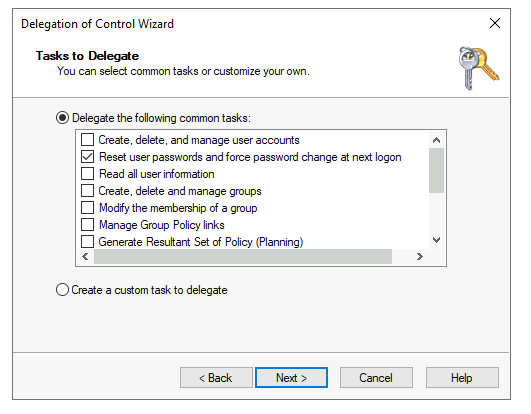
Click next a couple of times, and now Phillip should be able to reset passwords for any user in the sales department. While you'd probably want to repeat these steps to delegate the password resets of the Marketing and Management departments, we'll leave it here for this task. You are free to continue to configure the rest of the OUs if you so desire.
Now let's use Phillip's account to try and reset Sophie's password. Here are Phillip's credentials for you to log in via RDP:


| Username | phillip |
| Password | Claire2008 |
Note: When connecting via RDP, use THM\phillip as the username to specify you want to log in using the user phillip on the THM domain.
While you may be tempted to go to Active Directory Users and Computers to try and test Phillip's new powers, he doesn't really have the privileges to open it, so you'll have to use other methods to do password resets. In this case, we will be using Powershell to do so:
PS C:\Users\phillip> Set-ADAccountPassword sophie -Reset -NewPassword (Read-Host -AsSecureString -Prompt 'New Password') -Verbose

New Password: *********

VERBOSE: Performing the operation "Set-ADAccountPassword" on target "CN=Sophie,OU=Sales,OU=THM,DC=thm,DC=local".
Since we wouldn't want Sophie to keep on using a password we know, we can also force a password reset at the next logon with the following command:
PS C:\Users\phillip> Set-ADUser -ChangePasswordAtLogon $true -Identity sophie -Verbose

VERBOSE: Performing the operation "Set" on target "CN=Sophie,OU=Sales,OU=THM,DC=thm,DC=local".