
Proxmox Backup Server
Proxmox Backup Server (PBS)
Proxmox Backup Server is an enterprise backup solution, for backing up and restoring VMs, containers, and physical hosts.
This guide will walk you through installing PBS in a debian LXC on your Proxmox VE host and configuring it to export backups to an external drive.
Installing PBS
- Creating the LXC Container :
- Create a new Debian Bookworm LXC container on your Proxmox VE host with the following requirements met :
- 2 CPU cores
- 2 GiB RAM
- 8 GiB Storage space
- Installing PBS
- Add PBS's package repository :
wget -qO /usr/share/keyrings/proxmox-archive-keyring.gpg https://enterprise.proxmox.com/debian/proxmox-archive-keyring-bookworm.gpg echo \ "deb [arch=$(dpkg --print-architecture) signed-by=/etc/apt/trusted.gpg.d/proxmox-release-bookworm.gpg] http://download.proxmox.com/debian/pbs \ $(. /etc/os-release && echo "$VERSION_CODENAME") pbs-no-subscription" | \ tee /etc/apt/sources.list.d/proxmox.list > /dev/null - Download and install proxmox backup server :
You can now access PBS WebUI at <pbs_host_IP>:8007apt update apt install proxmox-backup-server
Create a Datastore
-
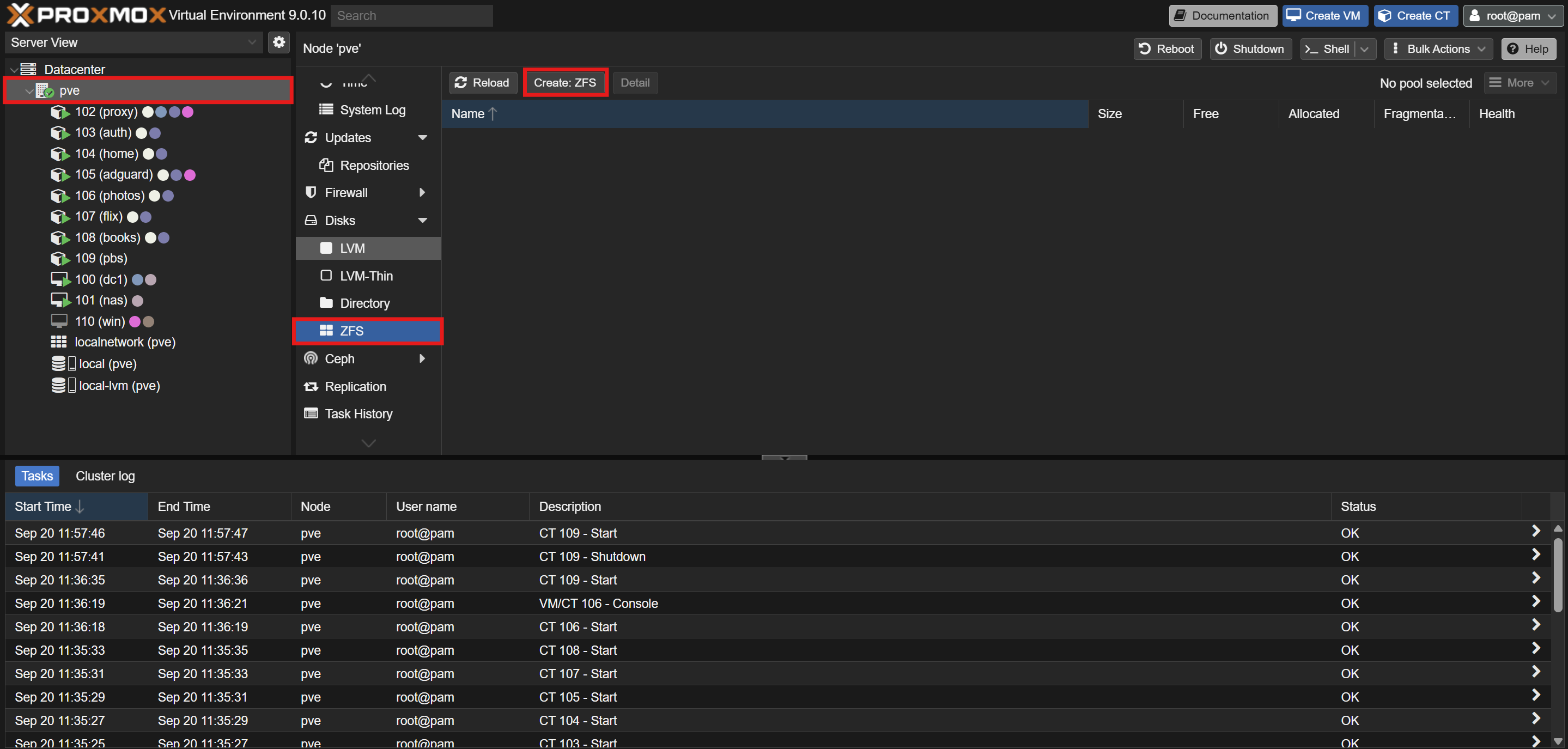
On Proxmox's WebUi, navigate to
PVE > Disks > ZFSand clickCreate: ZFS: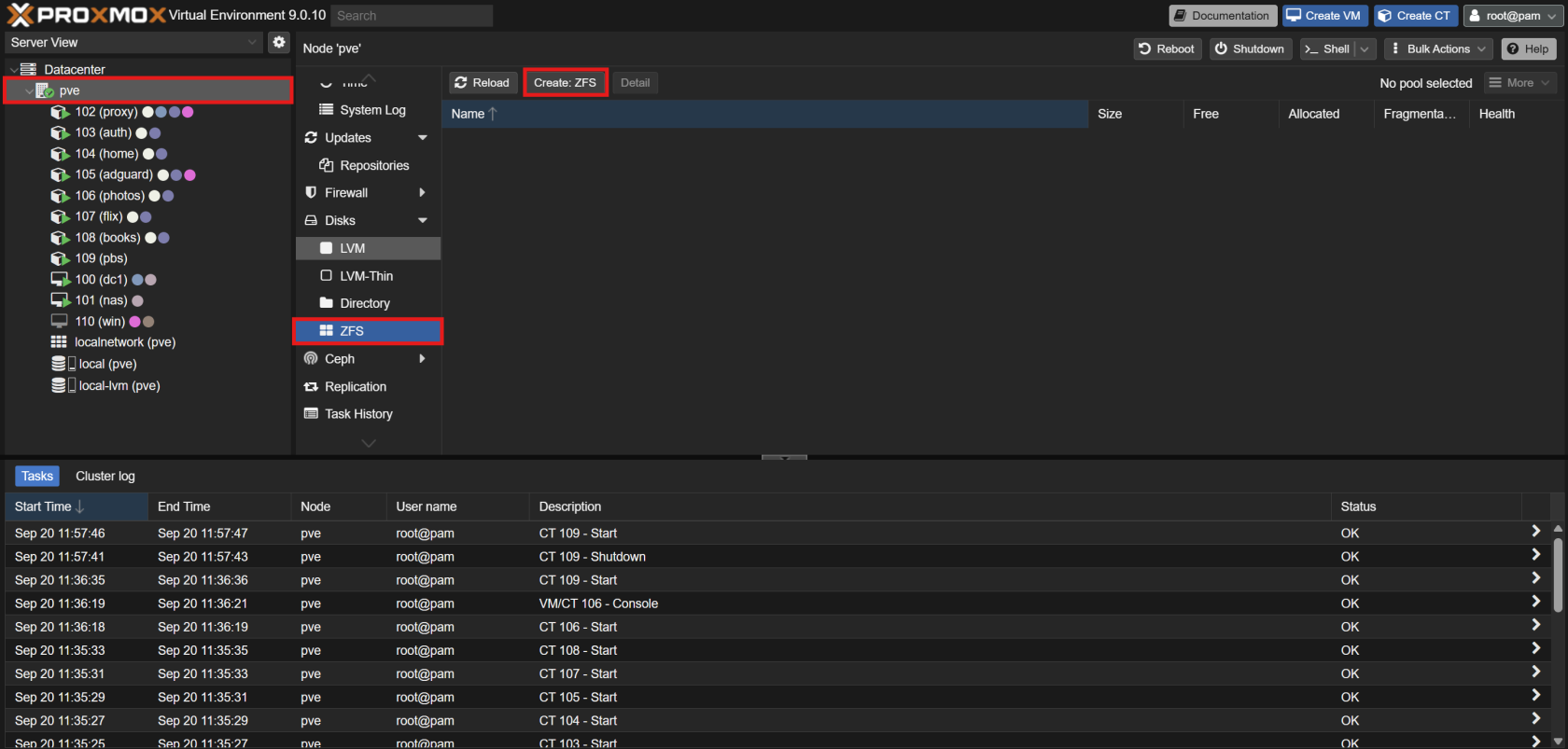
-
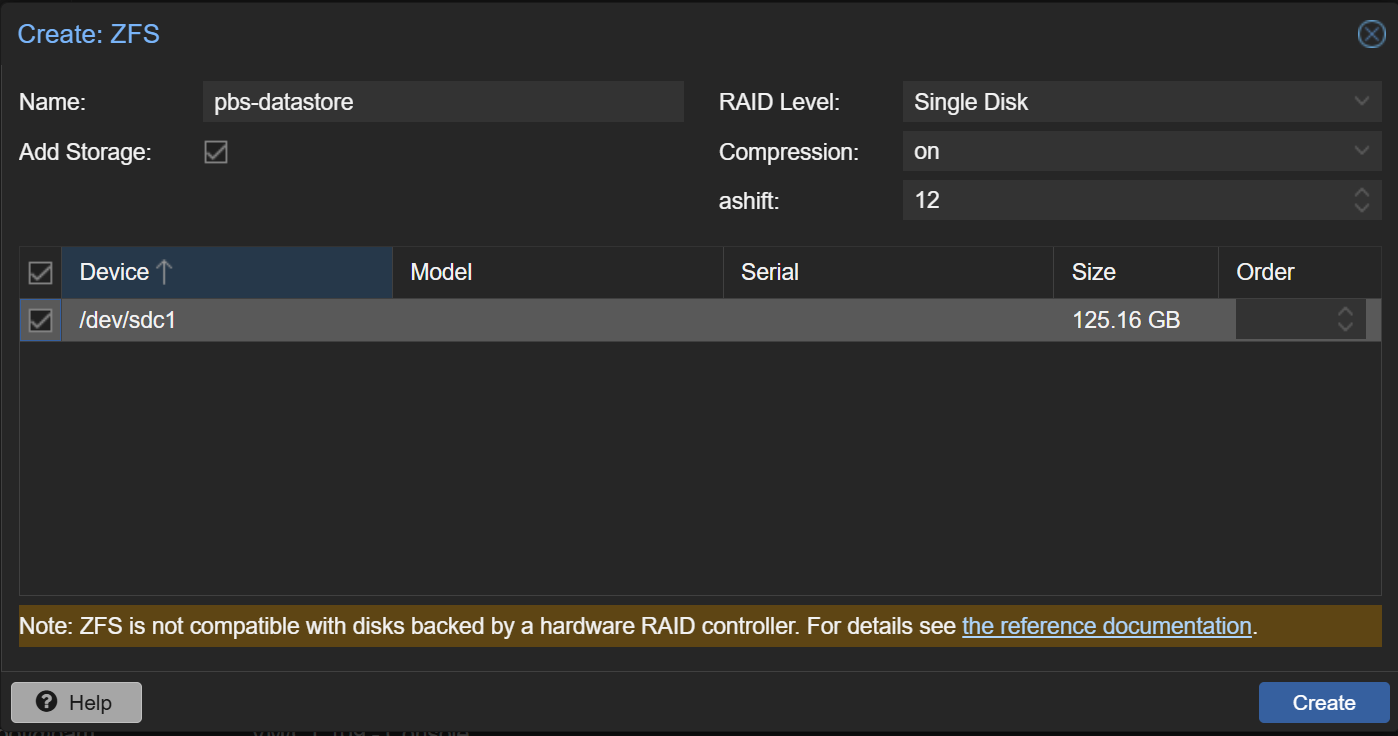
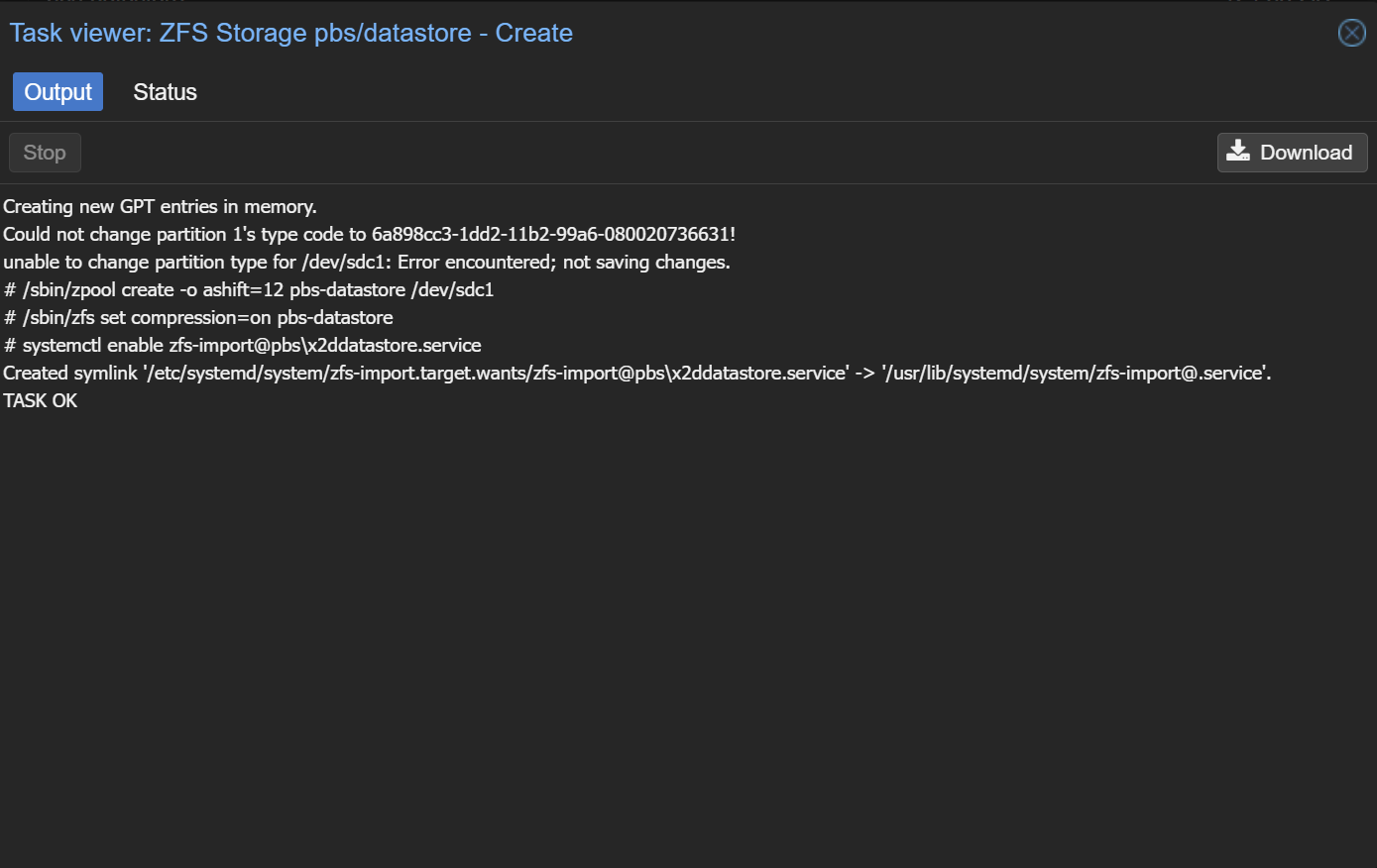
Name and create your ZFS Storage :
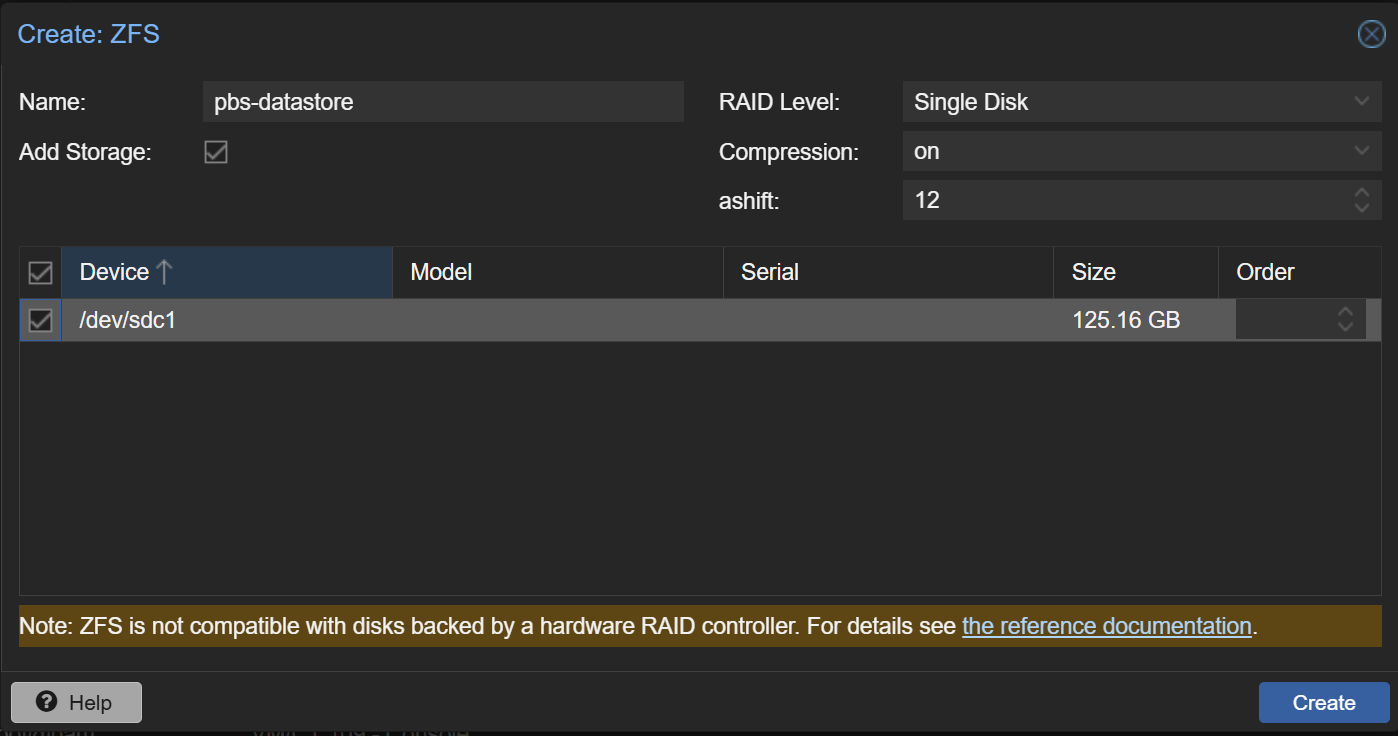
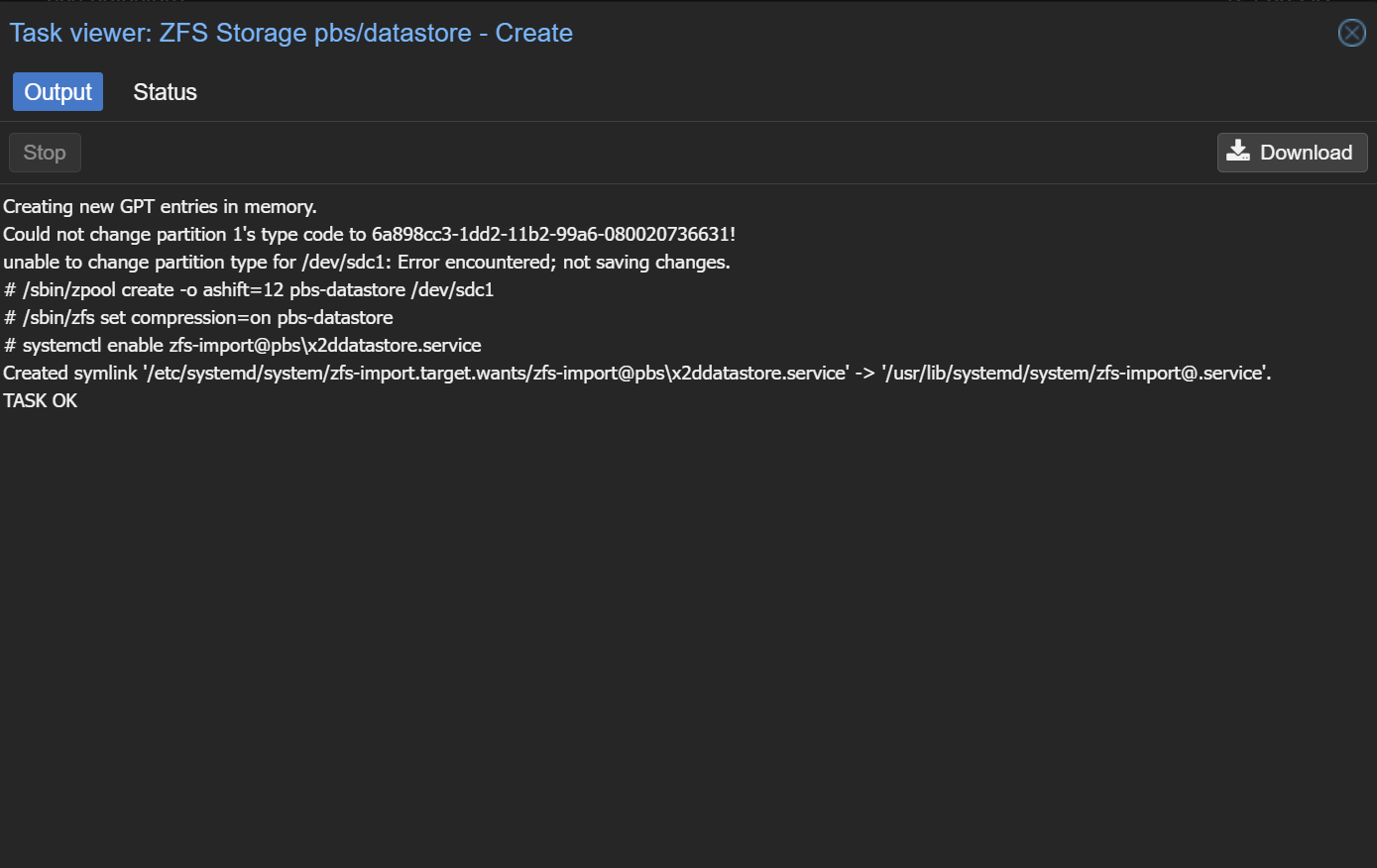
-
Create a ZFS Dataset from your PVE's host shell:
zfs create <zfs_storage_name>/<dataset_name> -
Edit your PBS LXC's configuration under
/etc/pve/lxc/<lxc_id>.confand add the following line :mp0: /<zfs_storage_name>/<dataset_name>,mp=/mnt/datastore/pbs -
Fix your permissions to make the ZFS share usable by the LXC :
chown -R 100000:100000 /<zfs_storage> chmod -R 750 /<zfs_storage> -
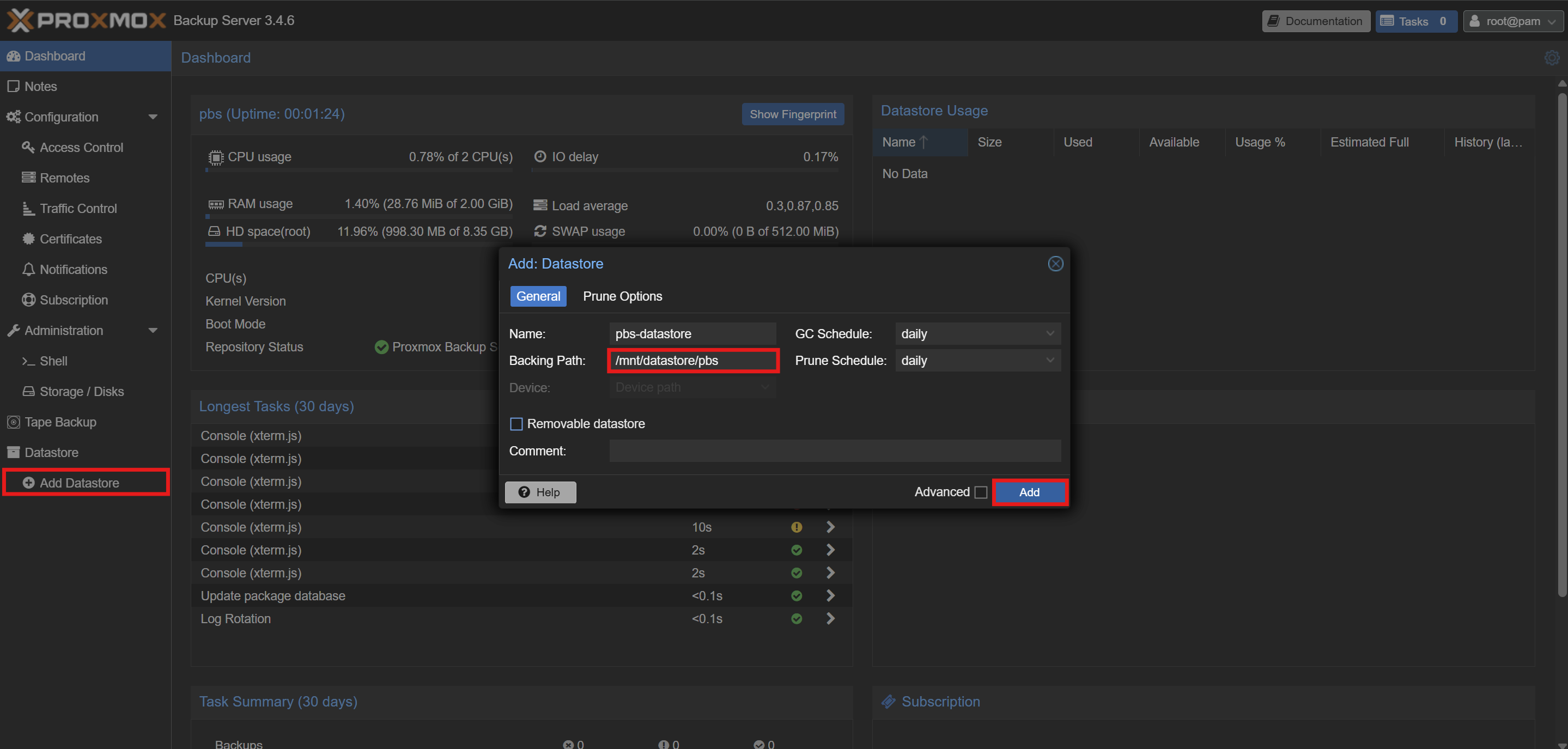
Reboot your LXC and log in the WebUI. Click on
Add Datastoreand create your Datastore by using the/mnt/datastore/pbsmountpoint :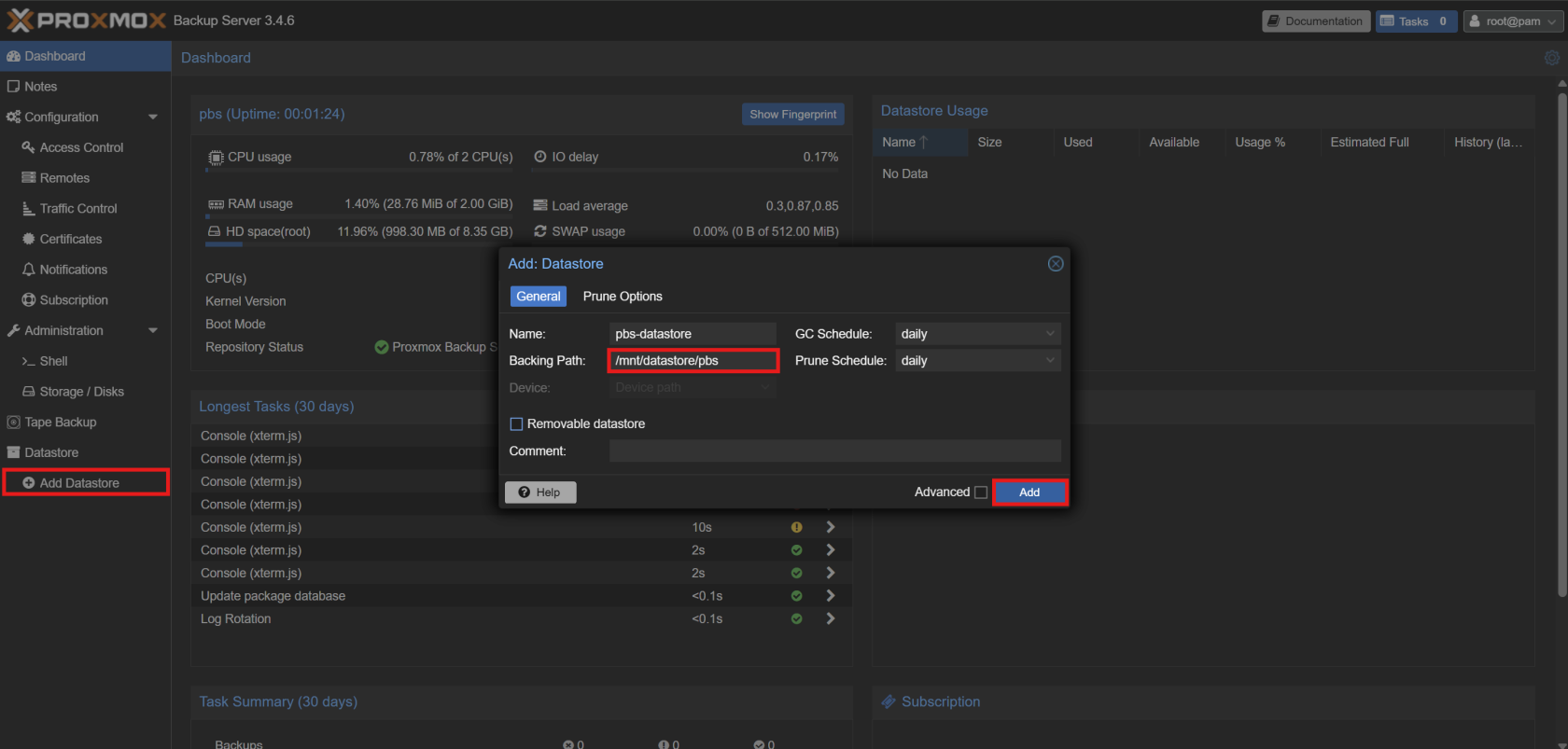
-
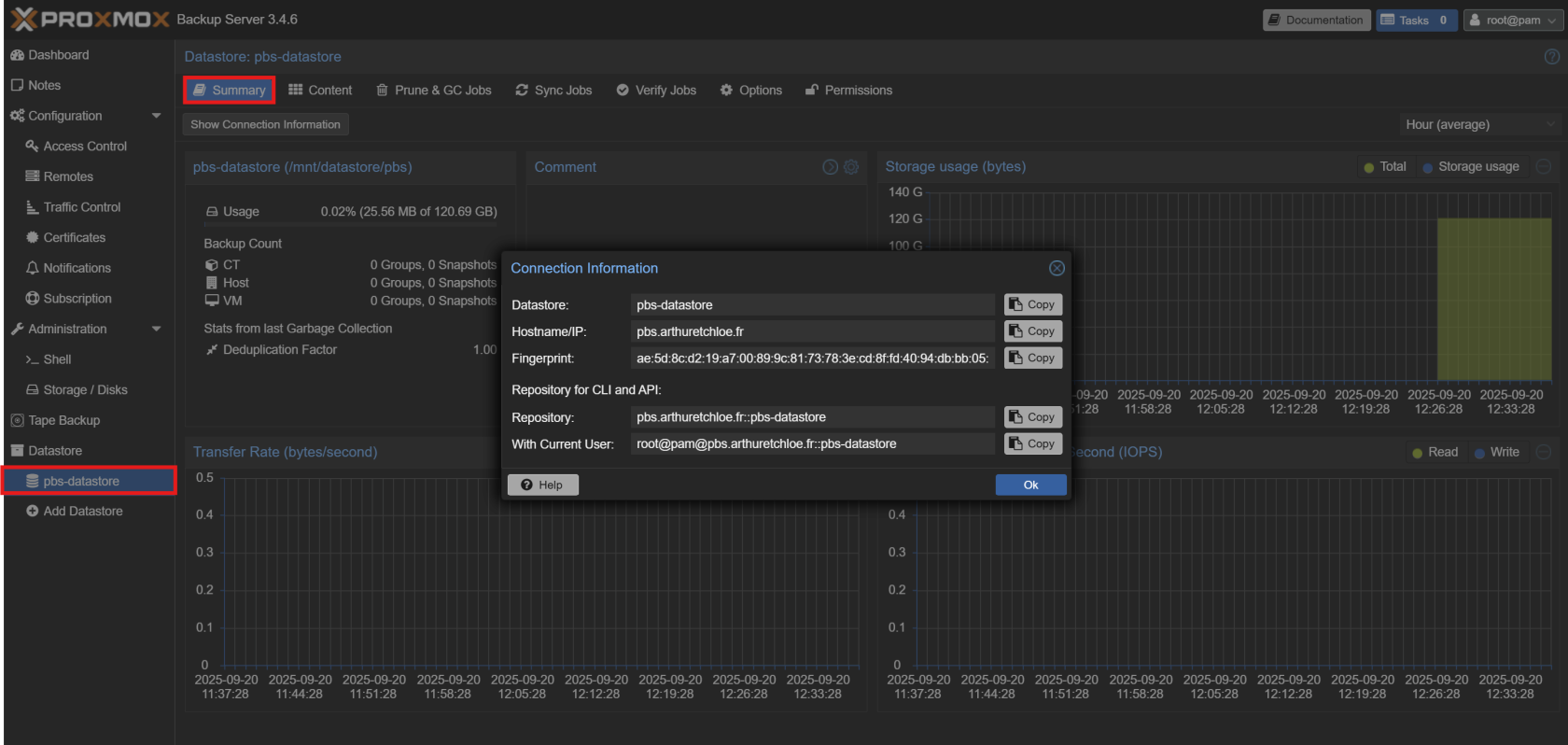
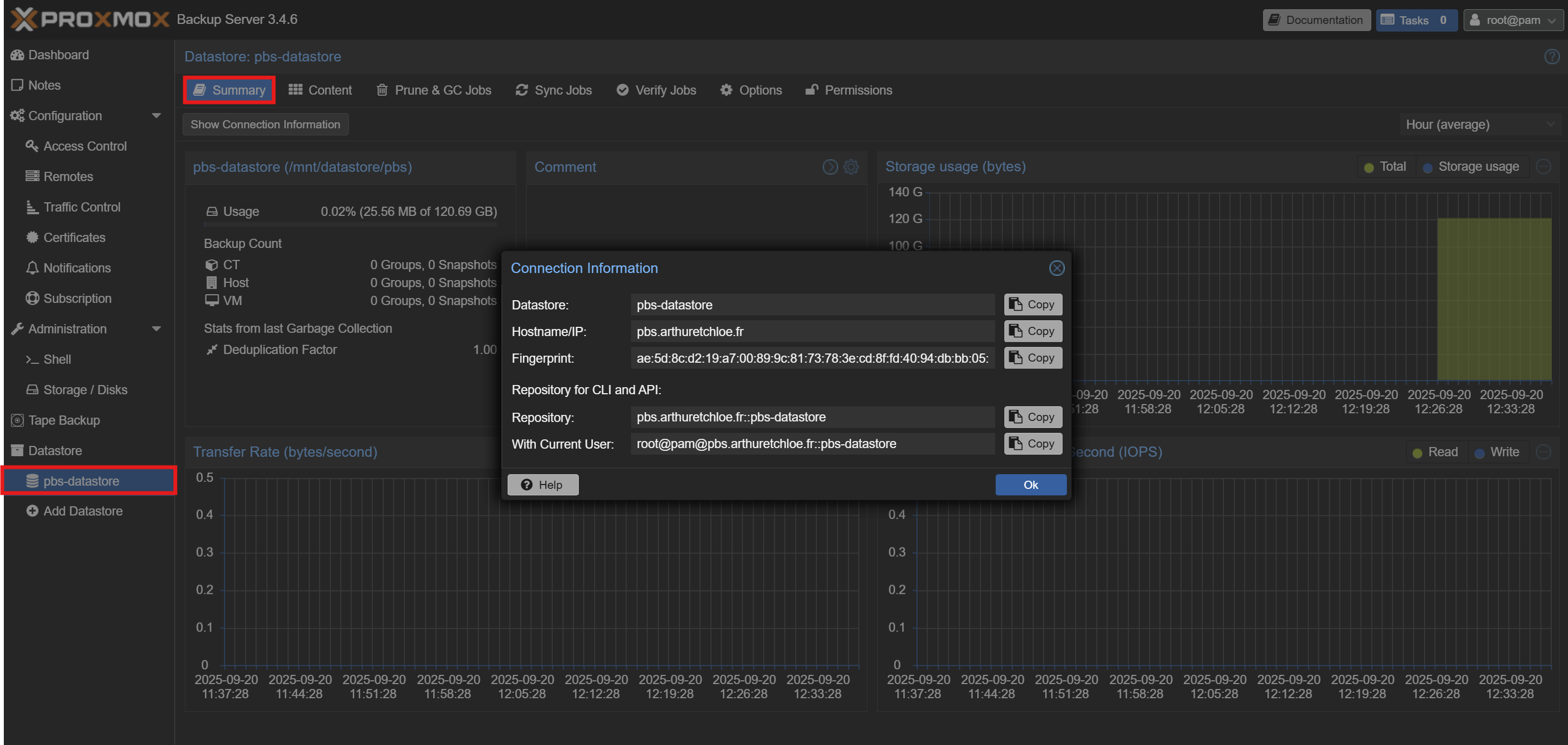
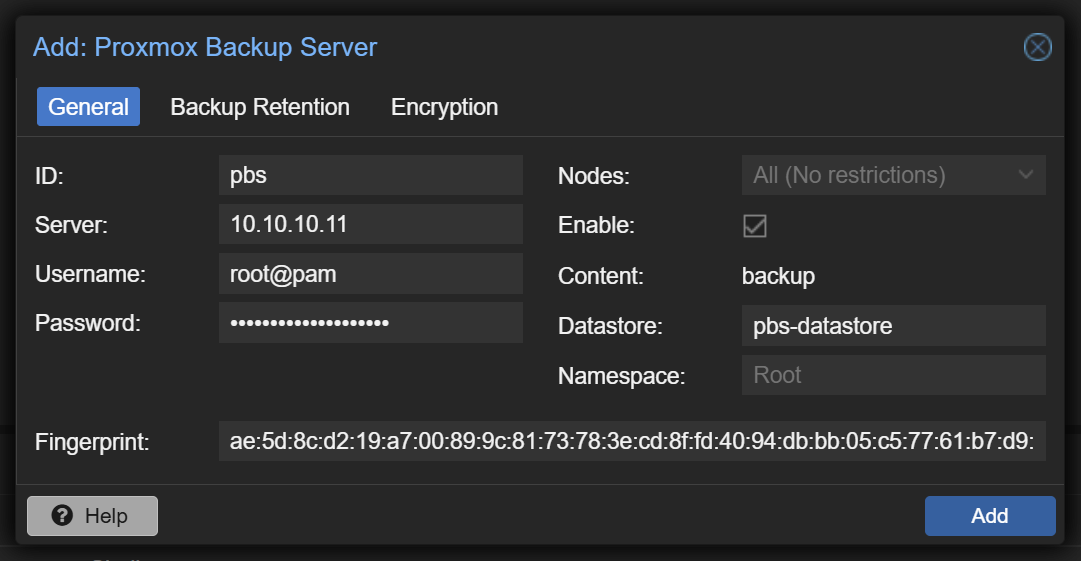
Finally, collect your connection information as you will need it later
Configure your PVE and PBS
- On your PVE's WebUI, navigate to
Datacenter > Storageand add a newProxmox Backup Server - Configure your PBS using the connection information that you recovered earlier and click the
Addbutton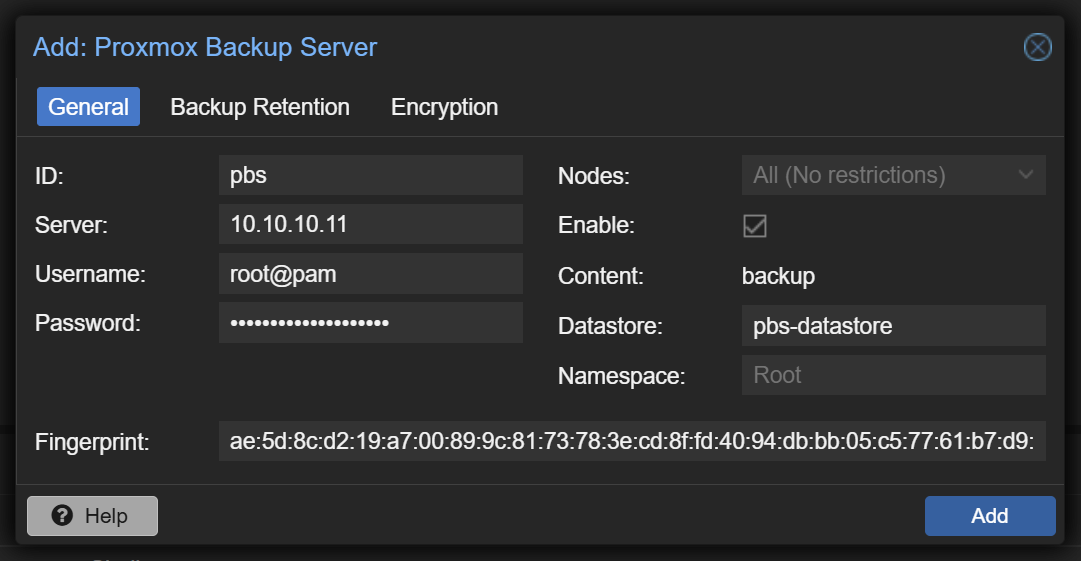
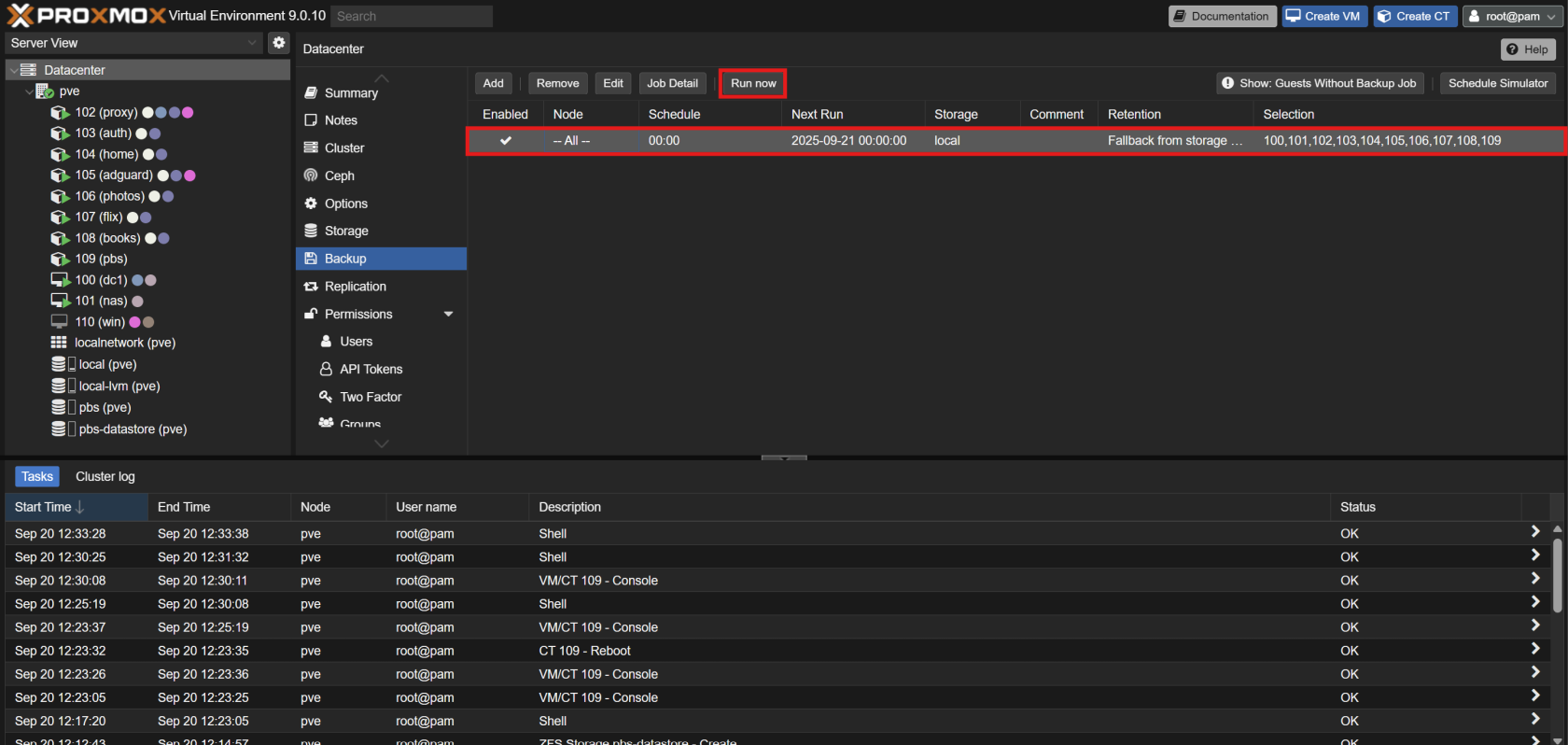
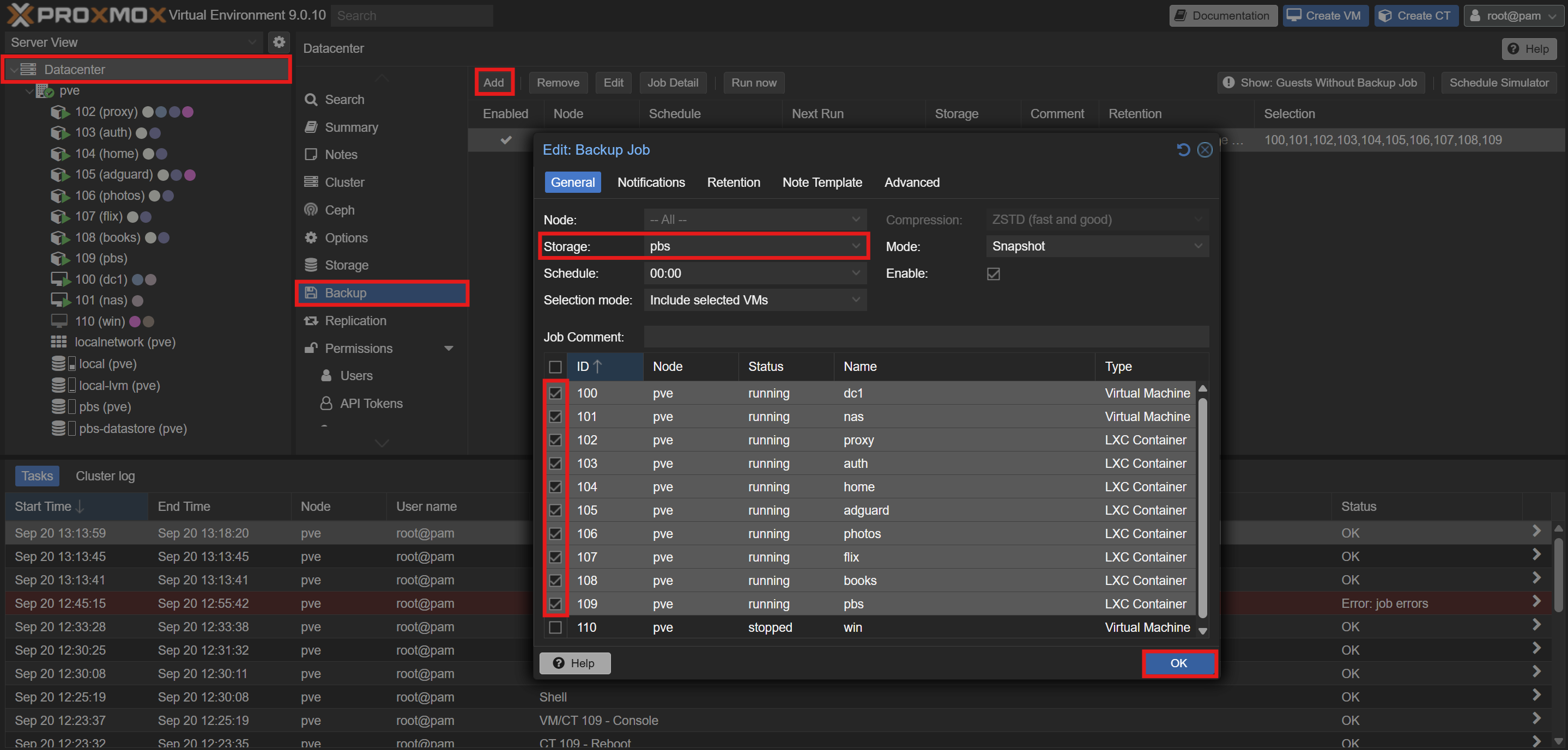
- Create a backup job under
Datacenter > Backup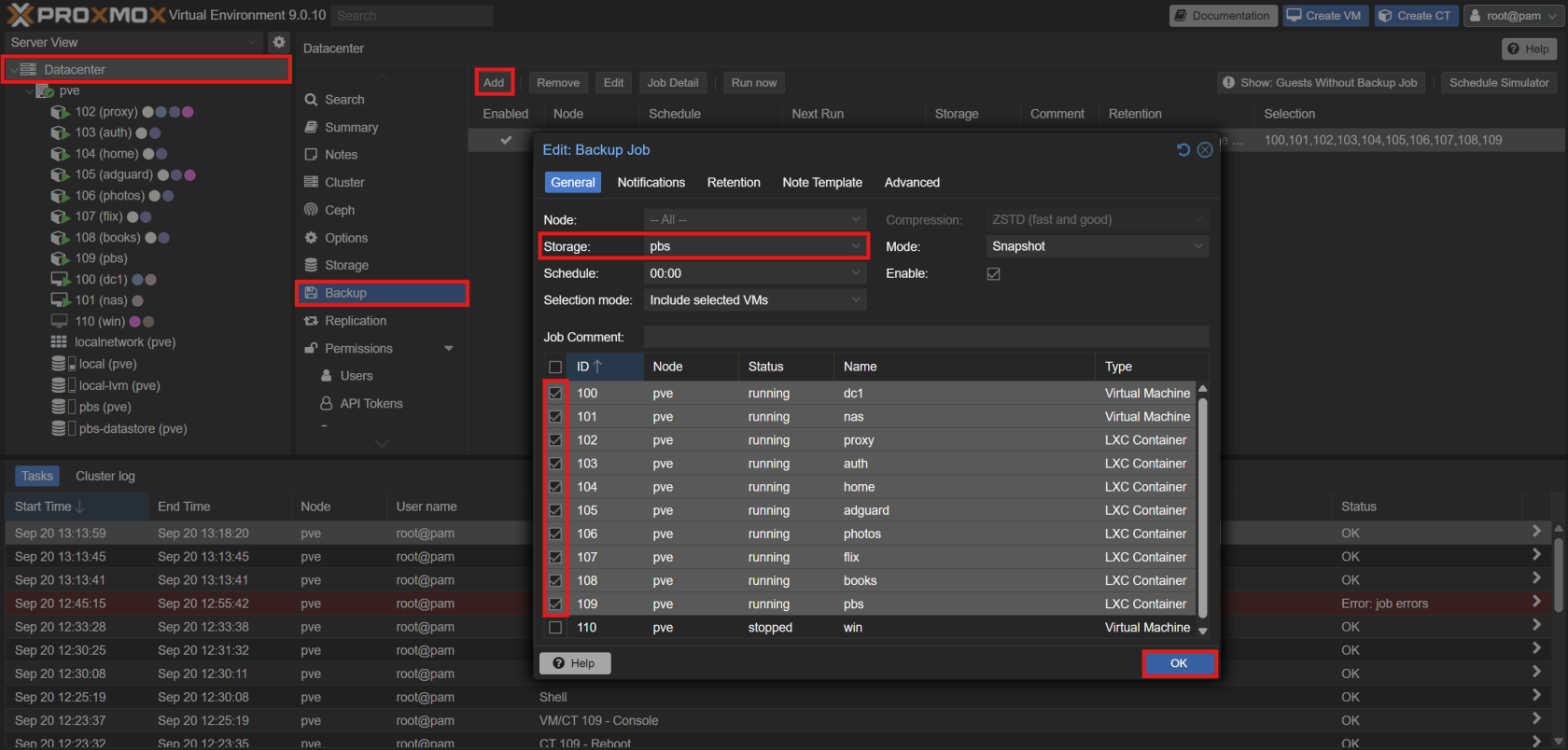
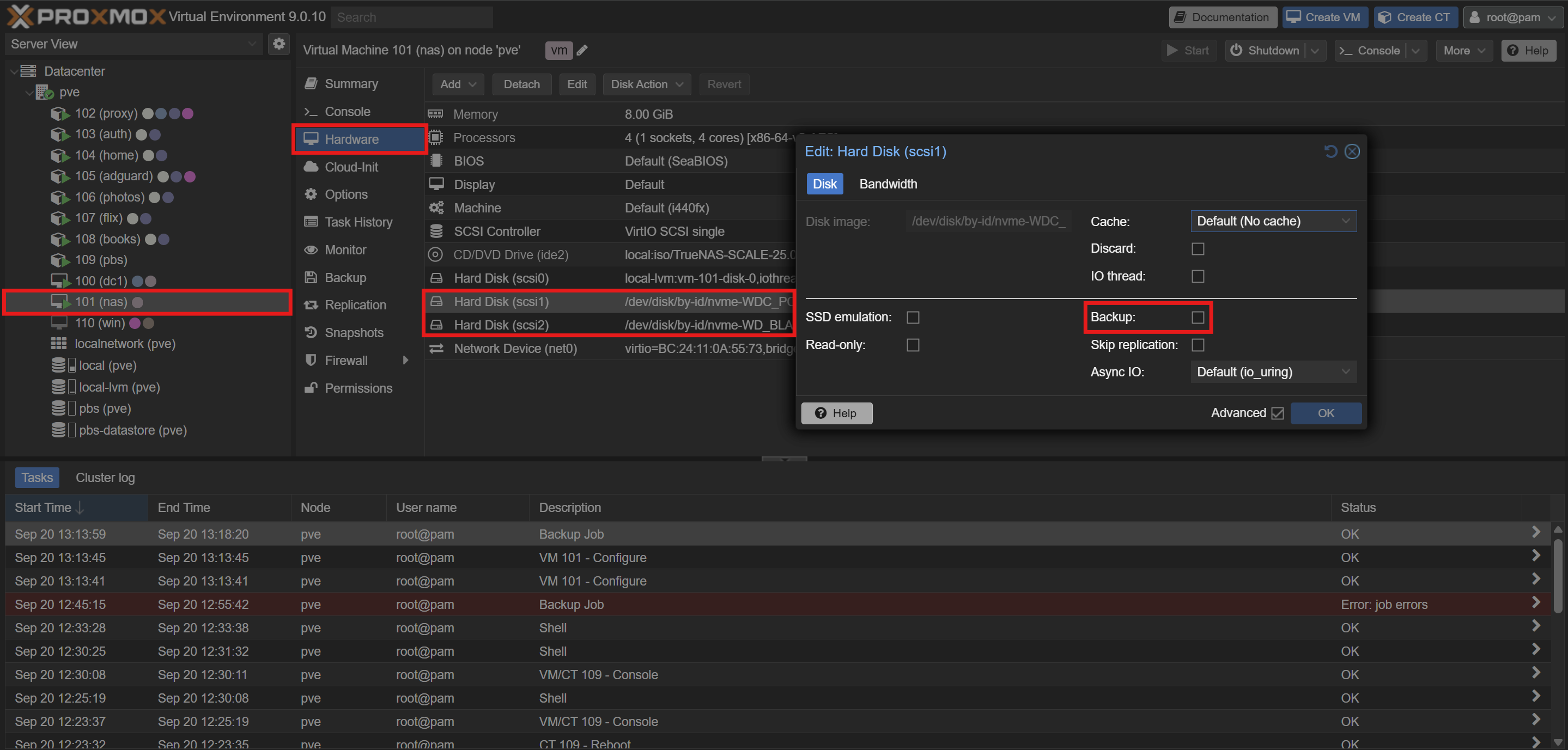
[!WARNING] Before running your backups, you need to make sure that your truenas's instance scsi drives are not inclueded in the backup.
To do so, disable the backup option in your VM's hardware :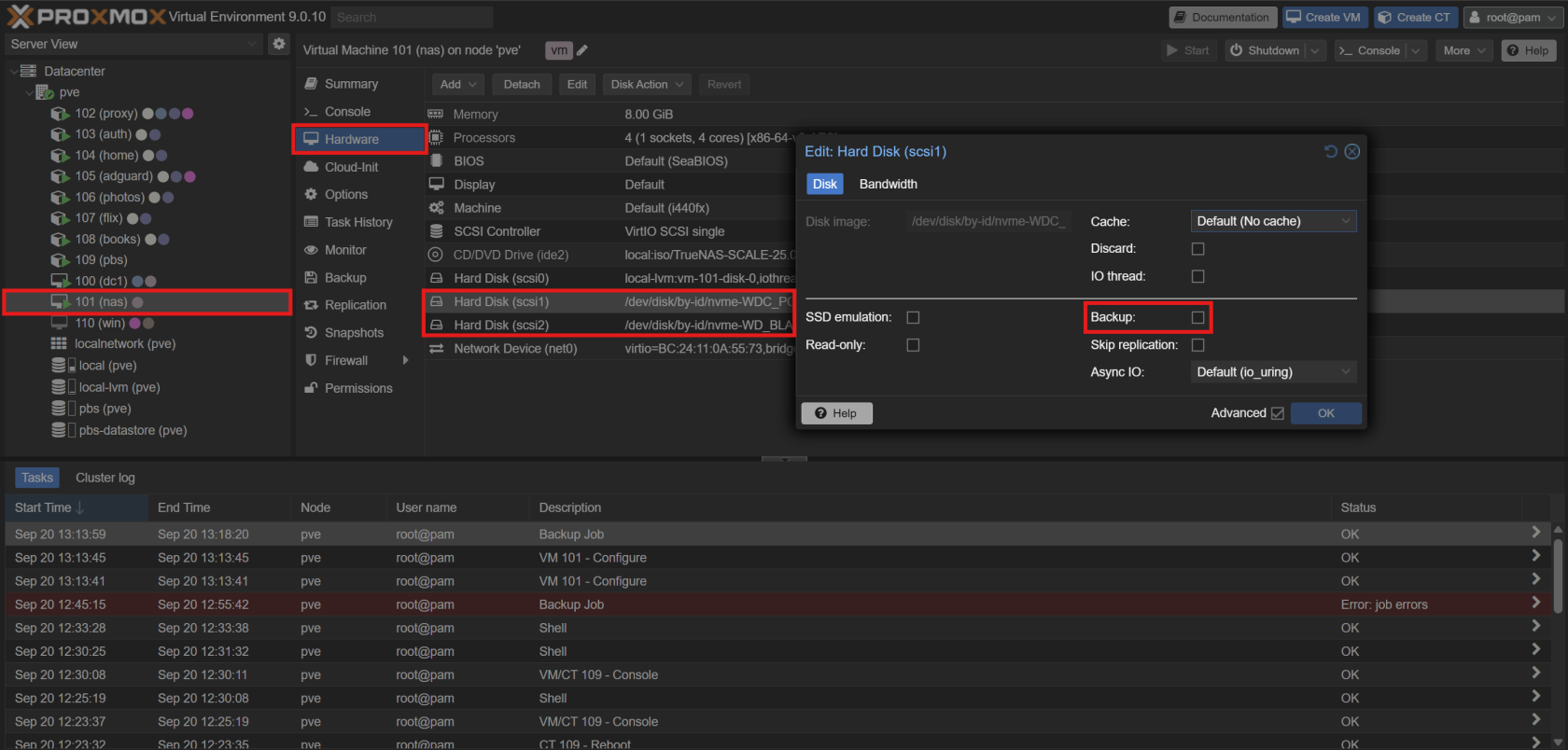
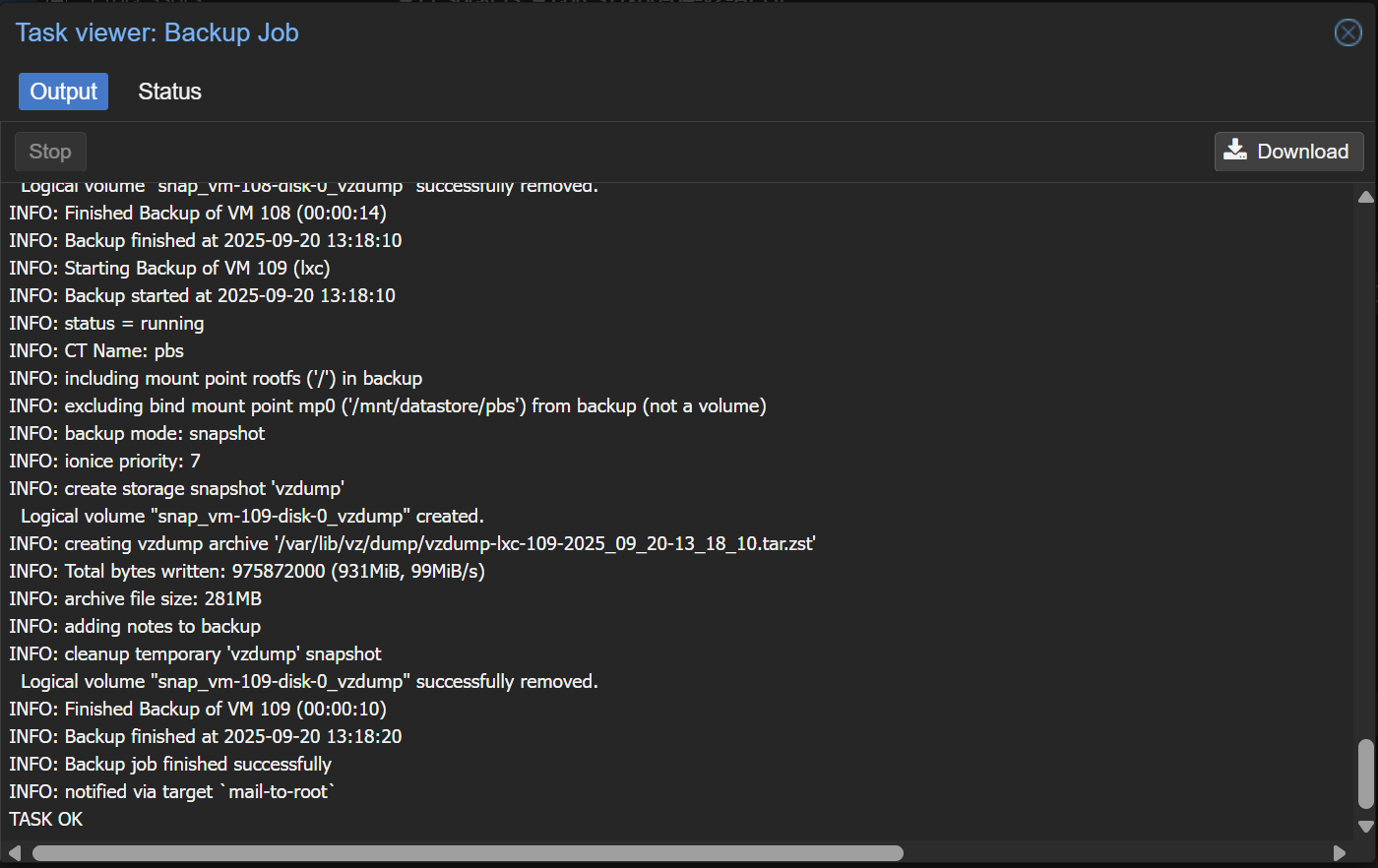
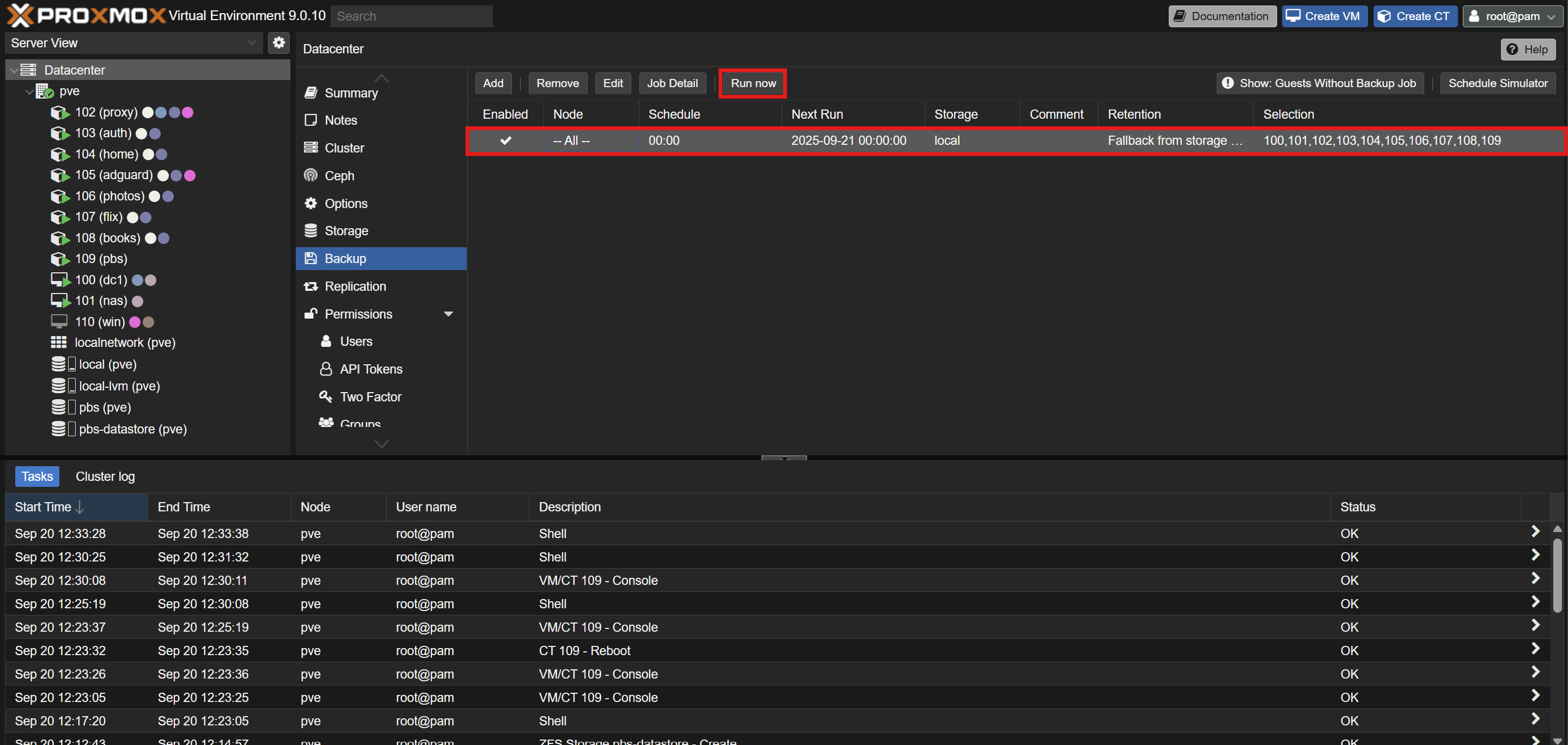
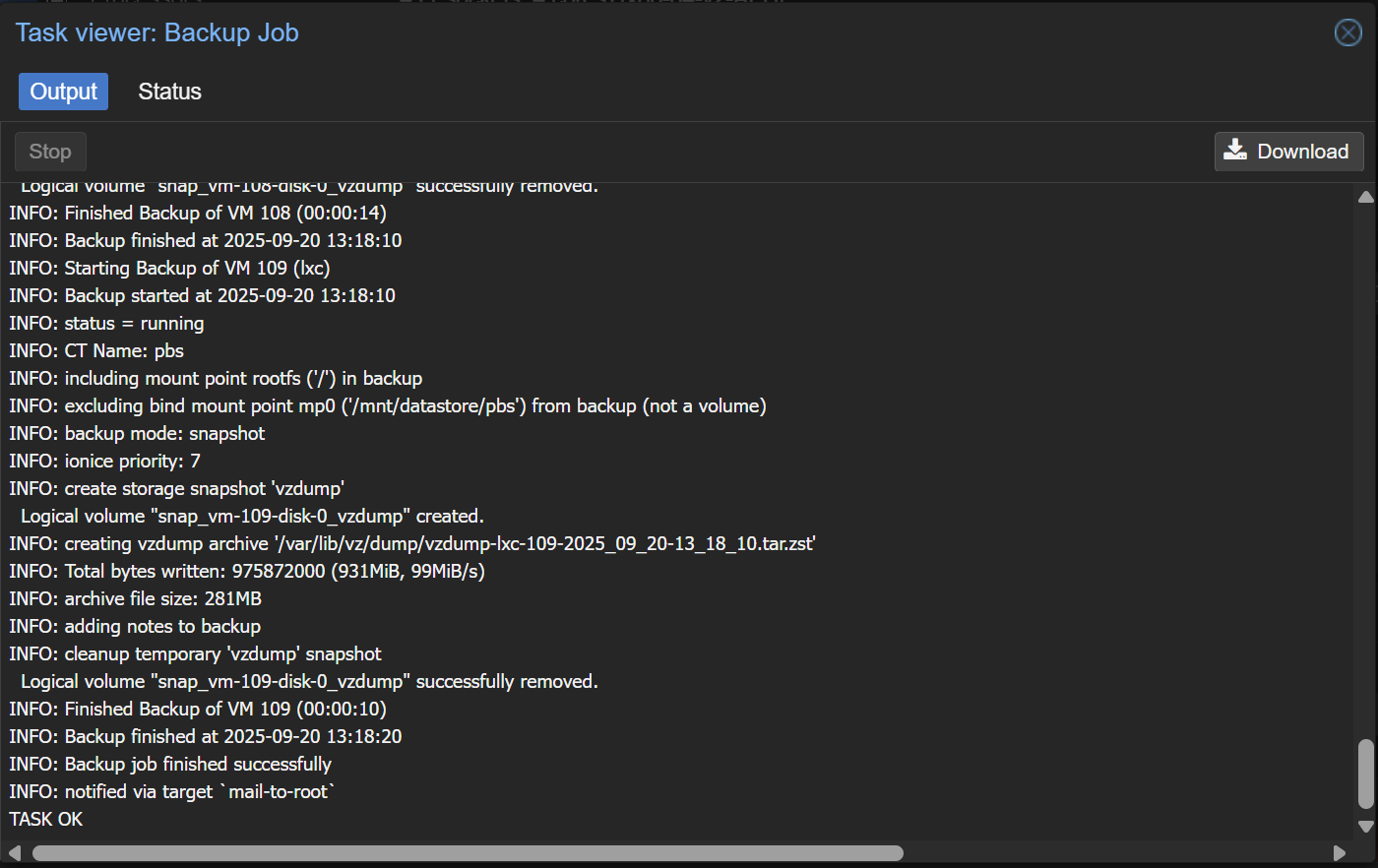
- Run your first backup :
No comments to display
No comments to display